Showing posts with label mandala. Show all posts

11/9/23

First Attempt at a Mandala Using the Folk Art Dots Set

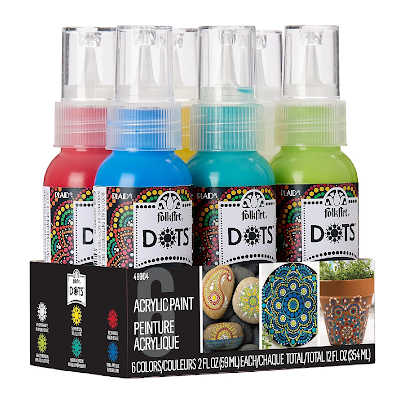
I love trying new-to-me craft materials. When using art supplies for the first time, the logical thing to do would be to read the packaging, and maybe even watch a tutorial, before jumping in and trying it. But that's not what typically occurs around here. I like to just give things a go and see what happens. Such is the case with this mandala, which was my first attempt using the FolkArts Dots Set (affiliate link here and throughout the post). 
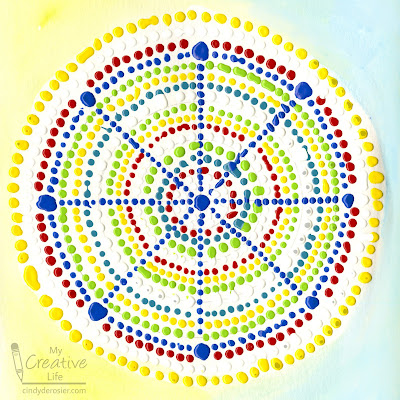

Despite the numerous places where dots are uneven or have run into each other, I had a great time making this. More importantly, I learned a lot about how the Dots Set works and now I know what to do differently for my next projects.  

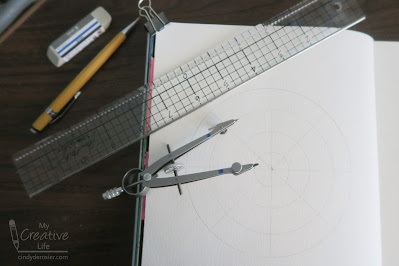
I started by drawing some concentric circles on the next empty page in my sketchbook, which happened to be on the lefthand side. This was Mistake #1. I should have done my first dotting project on a flat surface. I tried to work way too close to the binding. 


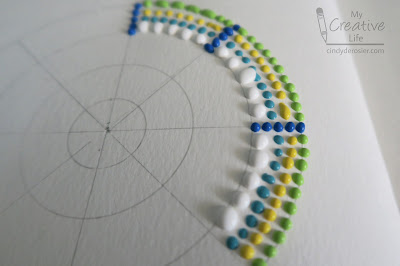
Mistake #2 was jumping right in with dots directly in my sketchbook, instead of practicing on scratch paper first. While the first few dots were perfect, many subsequent ones were not.... 


... particularly as I tried narrowing the distance between dots and making bigger dots directly on my project. (See blobs below.) 


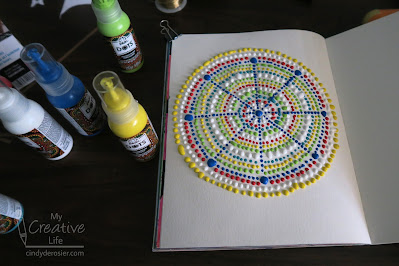
I worked from right to left (so as not to drag my hand through the project), but it would have been smarter to have worked from the inside out. My dots would have been much more consistent in size if I'd done an entire ring at a time. And if I'd been working on a flat surface instead of in a sketchbook, I could have easily rotated the paper to avoid having my hand in the way.


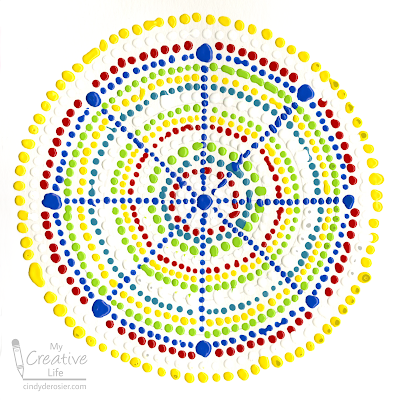
This is my finished page (scanned rather than photographed). While it's easy to see mistakes, particularly where I started, overall I'm happy with it. 


I let the dots dry overnight, then added watercolor to fill in the rest of the page. 


This set is such a great addition to the Folk Art brand.  


I loved working with the FolkArt Dots Set and can't wait to try it again!

4/12/21

Inspirational Words Mandala and Name Art Mandala

The possibilities are endless for making mandalas using PicMonkey. Here is a mandala made from 11 years' worth of my choices for One Little Word. 


The basic steps are the same as in the Easter Egg and Jelly Bean mandala, except instead of graphics, you're using text. After steps 1 and 2, instead of adding a Graphic, you'll click Add Text. Type in your word, choose a font, add some color, and drag it into position. 

Repeat until you have filled the upper right quadrant with words. All words should be fully within the quadrant.
 

Now pick up the egg mandala tutorial at Step 10. Group the words, then duplicate and flip. Group those two, then duplicate and flip. You should have a completed mandala.

 
You're not limited to inspirational words, of course. It's awesome for name art, too. (You know what a fan I am of name art!) To make this, I went back to my completed quadrant and changed each of the words to my name. I had to change a few fonts and resize a bit to make it fit, but it's mostly the same.


My brain is already whirring with more mandala possibilities!

3/31/21

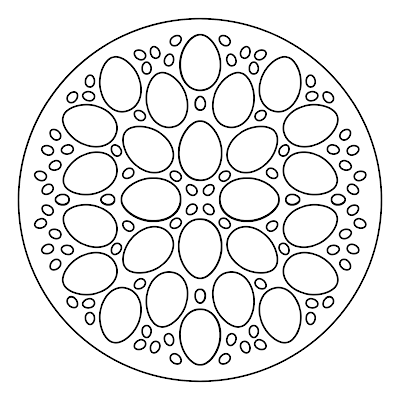
Easter Egg and Jelly Bean Mandala Coloring Page

I know that I never shut up about PicMonkey, but that is because I love it. In addition to using it for photo editing and creating graphics for social media and elsewhere, recently I've been using it to make my own coloring pages. My latest is a mandala of Easter eggs and jelly beans, which I colored by hand using Prismacolor art markers (affiliate link). 


You are more than welcome to print and color my mandala. 


Better yet, read on to learn how to make your own. I'll show you how I made my egg and jelly bean version, but you can use any shapes or objects you want. 


---------


How to Make a Mandala Coloring Page in PicMonkey


1. Open PicMonkey, then create a new blank canvas (square). 

2. Click on the wheel at the bottom to open Alignment. Check Show Grid on Canvas. Set it to 2 rows and 2 columns. 


3. Enter the shape you want (in this case, an egg) in Search All Graphics. There isn't a plain outlined egg, but that's no problem. I chose a polka dotted one, then used Effects to add an outline. 


4. Use Adjust to change both colors to white (if you'll be printing on colored paper, change them to Transparent). Now you have just the outline of an egg. 


5. Drag the egg into the upper right quadrant, then rotate it the way you want it. 

6. Right click and select Duplicate Layer. 


7. Place your duplicated egg where you want it and then duplicate again until you've filled the upper right quadrant with eggs. I fit eight in the space, with some sitting directly on the grid lines. This works because eggs have vertical symmetry. If you choose a shape that doesn't, keep the shapes within the quadrant.

8. Duplicate the egg one more time, then shrink that duplicated egg down to the size of a jelly bean by clicking and dragging on one of the corner dots. Drag the jelly bean into a space between the eggs. 

9. Continue to duplicate and place jelly beans until you're happy with the design. I have 22 jelly beans. 


10. Highlight all the eggs and jelly beans at once. Multiple Layers will pop up. Click Group. (Ungroup is showing in the screenshot because I've already grouped them.)


11. Now it's time for the magic! Duplicate the layer, then use the tool to flip it vertically. Move it into the upper left quadrant. 


12. Now group those two layers together, just like in Step 10. Duplicate the newly grouped layers, then flip it vertically, and slide it into place. 


Now you have a complete mandala, ready to print and color!